 +971 55 697 3770
 Yousuf Baker Road, behind Nasir Masjid, Naif, Deira, Dubai, UAE

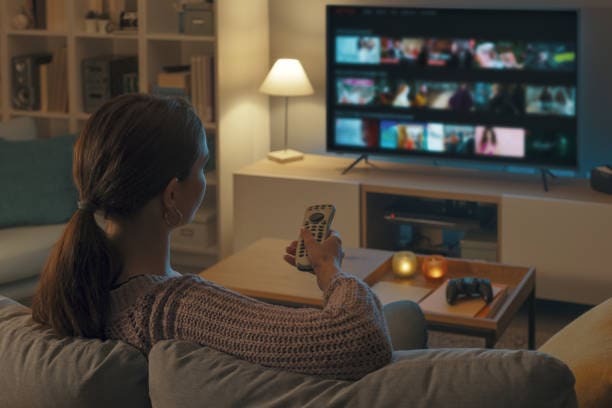
Buying a used television can help you save money without missing out on modern features. However, choosing the wrong TV can lead to unexpected repair costs and frustration. If you are searching for a used smart TV for sale in Dubai, it is important to check more than just the screen size, brand and price.
A Smart TV is more than a screen. It has software, internet features, speakers, ports and internal parts that must all work properly. Even if a television looks clean from the outside, it may have hidden problems such as damaged pixels, weak WiFi, faulty HDMI ports or slow software.
The good news is that you do not need to be a TV expert to check these things. A few simple tests can help you understand the condition of a television before spending your money.
This guide covers 10 important checks you should complete when buying a second-hand Smart TV. Whether you are considering a Samsung, LG, Sony or another popular brand, these tips will help you make a safer buying decision. You can also explore Fida Used Electronics to see available used television options in Dubai.
Why Should You Check a Used Smart TV Before Buying?
A second-hand Smart TV can offer excellent value, especially if you want a larger screen or better features at a lower price. Many people in Dubai choose pre-owned televisions because they can enjoy popular brands without paying the full price of a new model.
However, not every used television is in good condition.
For example, a TV may look perfect when switched off but show dark patches when playing a video. Another model may have a clear picture but fail to connect to WiFi or open streaming applications.
These problems can affect your daily viewing experience.
Before you buy a used television, take time to check:
- Picture quality and screen condition.
- Sound quality and built-in speakers.
- HDMI and USB connections.
- WiFi and internet performance.
- Smart applications and software.
- Remote control and physical buttons.
- Previous account and factory reset status.
- Outer body, cables and mounting points.
A proper inspection can help you avoid unnecessary repair costs and choose a television that suits your needs.
The 10-Point Checklist for Buying a Used Smart TV
Follow these 10 checks when visiting a shop. They are simple, practical and suitable for almost any Smart TV.
1. Check the Screen for Visible Damage
The screen is one of the most important parts of a television. Repairing a damaged display can be expensive, so always check it first.
Switch on the TV and look carefully at the entire screen. Pay attention to the corners, edges and middle section.
Look for:
- Vertical or horizontal lines.
- Cracks or scratches.
- Dark spots or patches.
- Dead or stuck pixels.
- Uneven brightness.
- Flickering or flashing areas.
Play a normal video with different colours and scenes. This makes it easier to notice problems that may not appear on the home screen.
Do not inspect the television only from a distance. Stand close enough to see small marks and display problems.
If you notice large dark areas, permanent lines or a damaged panel, ask the seller about the issue before considering the purchase.
2. Test the Picture with White and Black Screens
Some screen problems are difficult to notice during normal viewing. Testing the TV with plain colours can help you find hidden display faults.
Open YouTube and search for white screen and black screen test videos. You can also use videos with red, green and blue backgrounds.
Check the following:
White screen test: Look for dark spots, uneven brightness and small dots that do not change colour.
Black screen test: Look for bright patches, light leaking from the edges and cloudy areas.
Colour screen test: Check whether colours appear natural and consistent across the display.
For example, if one corner looks much darker than the rest of the screen, there may be a backlight problem.
These tests are especially useful when checking a large Samsung, LG or Sony television.
3. Check Viewing Angles from Different Positions
A television should provide a comfortable picture when you watch it from your normal seating position.
Stand directly in front of the screen first. Then move to the left and right sides.
Notice whether:
- Colours become faded.
- The picture becomes too dark.
- Details become difficult to see.
- Brightness changes significantly.
Some LED televisions naturally show reduced colour quality at wider viewing angles. However, heavy fading or unusual changes may indicate a problem.
This check is important if you plan to place the television in a large living room where several people watch from different positions.
4. Test the Sound at Different Volume Levels
Good picture quality is not enough. The built-in speakers must also work properly.
Play a video that contains both speech and music. Start with a low volume and gradually increase it.
Listen carefully for:
- Crackling sounds.
- Buzzing or unwanted noise.
- Distorted voices.
- Sudden sound cuts.
- Uneven sound from the speakers.
Try changing the volume several times to make sure the sound remains clear.
If you plan to connect a soundbar, also check the HDMI ARC or optical audio connection where available.
A television with faulty speakers may still work, but replacing or repairing audio components can add extra costs.
5. Test Every HDMI and USB Port
HDMI and USB ports allow you to connect other devices to your television.
For example, you may want to connect a gaming console, laptop, TV box, USB drive or external storage device.
Do not assume that every port works simply because the television switches on.
Take a few minutes to test them individually.
Check HDMI ports:
- Connect a laptop or another HDMI device.
- Change the TV input source.
- Confirm that the picture and sound appear.
- Repeat the process for every HDMI port.
Check USB ports:
- Insert a USB drive.
- Open the media player.
- Check whether the television detects the files.
Also inspect the ports for loose connections or visible damage.
If you regularly use gaming devices or external media players, working HDMI and USB connections are particularly important.
6. Connect the TV to WiFi
Internet connectivity is a key feature of any Smart TV. Without a stable connection, you may not be able to enjoy streaming services or online applications.
Ask the shop to connect the television to its WiFi network. If possible, use your phone as a hotspot.
Follow these steps:
- Open the television settings.
- Find the network or WiFi section.
- Select the available network.
- Enter the password.
- Wait for the connection to complete.
- Open an online video and play it.
Watch the video for at least one minute.
Check whether the connection remains stable or keeps disconnecting.
A weak WiFi connection could be caused by network conditions, outdated software or a problem with the television’s wireless hardware. Testing it before purchase can help you identify possible issues.
7. Open Smart Apps and Check Their Performance
A Smart TV should be able to open its supported applications without constant freezing or restarting.
Try opening popular apps such as YouTube and Netflix, depending on the model and its available software support.
Check the following:
- Does the home screen load properly?
- Do applications open without long delays?
- Can you search for videos?
- Does streaming work smoothly?
- Does the TV freeze when switching between apps?
- Can you access the app store?
Older Smart TVs may have slower menus than newer models. This is not always a sign of damage.
However, repeated freezing, unexpected restarts and applications that refuse to open may indicate software or hardware problems.
Also remember that some older televisions no longer support the latest versions of certain streaming applications. Check app compatibility before buying if you mainly use the TV for online entertainment.
8. Test the Remote Control
The remote control is something you will use almost every day. A faulty or missing remote can make a Smart TV difficult to operate.
Ask the seller for the remote that belongs to the television.
Test the main buttons, including:
- Power.
- Volume up and down.
- Channel controls.
- Home and menu.
- Input or source.
- Navigation arrows.
- Settings.
- Voice control, if available.
Check whether the remote responds quickly and whether any buttons are stuck.
For Smart TVs with voice assistants or special navigation features, test those functions too.
Some televisions require an original smart remote for certain features. A basic replacement remote may not support everything.
If the original remote is missing, ask whether a compatible replacement is available and whether its cost is included in the price.
9. Check Software, Model Number and Previous Accounts
Before buying a second-hand Smart TV, make sure its software and account settings are in good order.
Open the settings menu and find the model number. You can use this information to check the television’s features and software support later.
Also check whether the previous owner’s accounts have been removed.
A proper factory reset should normally remove personal account information and return the TV to its initial setup screen.
Ask the seller to:
- Sign out of previous accounts.
- Perform a factory reset.
- Confirm the model number.
- Check for available software updates.
- Make sure the TV starts without asking for the previous owner’s login details.
Never leave your personal streaming account signed in after testing the television.
These steps help protect your privacy and make it easier to set up the TV at home.
10. Inspect the Body, Back Panel and Accessories
The final check is the physical condition of the television.
Look at the front frame, rear panel, stand and connection areas.
Check for:
- Cracks in the body.
- Loose or missing screws.
- Signs of heavy impact.
- Burn marks near ventilation openings.
- Damaged power cables.
- Missing stands or mounting parts.
- Loose wall-mounting points.
Also check the model sticker on the back of the television.
If you plan to mount the TV on a wall, confirm that the mounting holes are in good condition and that a suitable wall bracket is available.
A few small scratches may not affect performance, but serious physical damage should never be ignored.
Warning Signs That Mean You Should Avoid Buying the TV
Even if a used television is offered at a very attractive price, some problems are not worth the risk.
Be careful if you notice any of these warning signs:
| Warning sign | Possible problem |
|---|---|
| Vertical or horizontal lines | Display or panel fault |
| Cracked screen | Physical panel damage |
| Repeated shutdowns | Power or internal hardware issue |
| Constant flickering | Display or backlight problem |
| No sound | Speaker or audio board fault |
| Dead HDMI ports | Connection or circuit issue |
| Frequent WiFi disconnections | Network or hardware issue |
| Repeated system freezing | Software or hardware problem |
You should also be cautious if the seller refuses to switch on the TV or does not allow you to test its main features.
A low price does not always mean a good deal. A television that needs expensive repairs may end up costing more than a properly checked model.
A Quick 15-Minute Testing Plan for the Shop
You do not need professional equipment to inspect a second-hand Smart TV. Your smartphone, a USB drive and a few minutes are enough to complete most basic checks.
Here is a simple testing plan:
First 3 minutes: Screen inspection
- Switch on the television.
- Check for cracks, lines and dark spots.
- Play white and black screen tests.
Next 3 minutes: Picture and sound
- Play a normal video.
- Check colours and brightness.
- Test sound at different volume levels.
Next 3 minutes: Ports and internet
- Test HDMI and USB connections.
- Connect to WiFi.
- Stream an online video.
Next 3 minutes: Smart features
- Open YouTube or another supported app.
- Check menu speed.
- Test the remote control.
Final 3 minutes: Physical inspection
- Check the back panel and power cable.
- Confirm the model number.
- Ask about warranty and the testing period.
This short routine covers many common problems and helps you compare different televisions before making a decision.
How Long Should You Test a Used Smart TV?
Although a quick inspection is useful, it is better to leave the television switched on for at least 10 to 15 minutes.
Some faults only appear after the TV has been running for a while.
For example:
- The screen may start flickering after warming up.
- The television may restart unexpectedly.
- Colours may change after several minutes.
- The WiFi connection may become unstable.
- Sound may cut out during longer playback.
Use this time to check the ports, applications and remote control.
If you are buying a large television, take your time. There is no reason to rush a decision involving something you may use every day.
A reliable seller should be comfortable allowing you to inspect the product before paying.
Ask About Warranty and Testing Period
Even after completing all 10 checks, it is sensible to ask about the shop’s warranty or testing policy.
A used television may develop a fault after a few days, even if it worked correctly during the initial inspection.
Before buying, ask:
- Is there a warranty?
- How long does the warranty last?
- Which parts and faults are covered?
- Is there a testing period?
- Will the shop repair or replace the television if a covered problem appears?
- Who should you contact if you experience an issue?
Also ask for a purchase receipt and keep it somewhere safe.
Make sure you understand the terms before completing the purchase. Do not assume that every second-hand television comes with the same warranty. Read the Fida Used Electronics Refund and Returns Policy to understand the published return conditions.
Clear information about after-sales support can make buying a used television a much more comfortable experience.
Where to Find a Used Smart TV for Sale in Dubai
If you are searching for a second hand smart TV for sale Dubai, choosing a shop where you can inspect and test the television is a sensible approach.
Buying from a physical store gives you the opportunity to see the actual screen, check the sound and test the smart features before making your decision.
At Fida Used Electronics, you can explore different used television options and check their condition before buying.
The shop is located on Yousuf Baker Road, behind Nasir Masjid, Naif, Deira, Dubai.
You can visit the store to ask about available Samsung, LG, Sony and other Smart TV models. The team can help you explore different screen sizes and find an option that suits your budget and viewing needs.
If you are looking for a used smart TV near me, visiting a local electronics shop can also save you the uncertainty of buying a television without seeing it first.
You can browse available used TVs in the Fida online shop before visiting.
For more information about the business and its services, the team is available to answer your questions.
Fida Used Electronics Contact Details
- Location: Yousuf Baker Road, behind Nasir Masjid, Naif, Deira, Dubai.
- Phone: +971 55 697 3770.
- Opening Hours: Every day, 9 AM to 12 AM.
Call the shop before visiting to ask about current stock, available brands and prices. You can also use the Fida Used Electronics contact page to get in touch.
Whether you want a small bedroom television or a large living room Smart TV, take your checklist with you and test the model before making your final choice.
Frequently Asked Questions
1. What should I check before buying a used Smart TV?
Check the screen, speakers, HDMI and USB ports, WiFi, smart applications, remote control, software and physical condition. Also ask about the warranty and testing policy.
2. Is it safe to buy a second-hand Smart TV?
Yes, buying a second-hand Smart TV can be a good option if you inspect it properly and purchase from a seller who allows you to test its features. Always check the condition before paying.
3. Do used Smart TVs still receive software updates?
Some used Smart TVs continue to receive updates, while older models may no longer be supported by their manufacturers. Check the software settings and model number to understand the available support.
4. Can I connect my mobile phone to a used Smart TV?
Yes. Many Smart TVs support screen mirroring, casting or wireless connections. However, the available features depend on the brand and model. Test the connection before purchasing.
5. Should I factory reset a used Smart TV?
Yes. A factory reset helps remove the previous owner’s accounts, saved settings and personal information. Ask the seller to reset the television before you take it home.
6. Is a slow Smart TV worth buying?
It depends on how slow it is. Older models may have slower menus because of their hardware. However, constant freezing, restarting and application crashes can indicate bigger problems.
7. Can I test a used Smart TV with my own Netflix account?
Yes, if the television supports Netflix. You can sign in to test the application, but remember to sign out before leaving the shop so your account details are not saved.
8. Where can I buy a used Smart TV in Dubai?
You can visit Fida Used Electronics in Naif, Deira, Dubai, to explore available used televisions. Contact +971 55 697 3770 to ask about current models, screen sizes and prices.
9. How much should I spend on a used Smart TV?
The price depends on the brand, screen size, model, age and condition. Compare similar televisions and consider their features and warranty rather than choosing only the cheapest option.
10. How can I find a reliable used Smart TV near me?
Look for a local electronics shop that allows customers to test televisions before purchasing. Check customer feedback, available warranty terms and the condition of the actual model.
Final Thoughts
Buying a second-hand television does not have to be difficult. The key is to check its condition carefully instead of making a decision based only on its appearance or price.
Use this 10-point checklist to inspect the screen, sound, ports, WiFi, applications, remote and physical body. Give the television enough time to run and always ask about the warranty before paying.
If you are looking for a used smart TV for sale in Dubai, visit Fida Used Electronics in Deira and explore the available options. Take your time, test the features and choose a television that offers good value for your money.
